
Complete Your Compliance Checklist
To be listed as a certified contractor, you need to provide insurance, credentials, and background check information. This guide walks you through submitting your insurance details by connecting your broker directly with Sublynk.
Open the Compliance Checklist
Compliance tasks are highlighted on your dashboard and within each compliance menu such as Insurance. If your organization is not fully compliant it is not eligible to receive work from partner networks, or be listed on the Sublynk Certified network database.
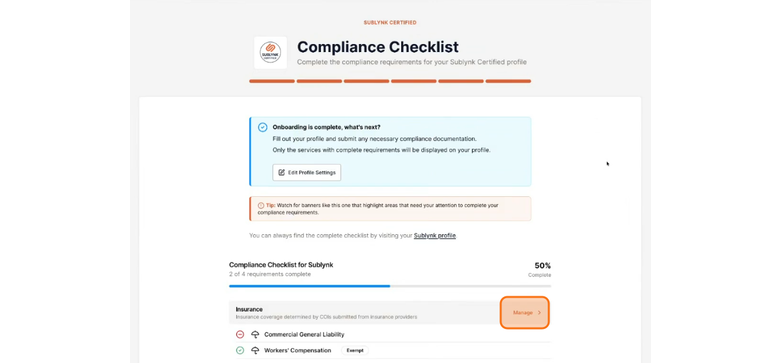
You can manage your insurance profile from your compliance checklist or via the insurance tab on the left main menu.
In the top right corner, click Manage Insurance Profile.
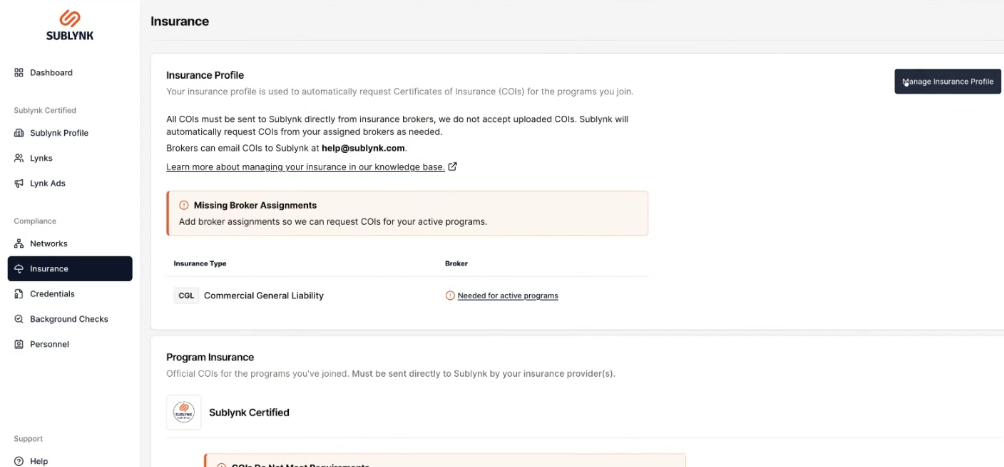
Add Your Insurance Broker
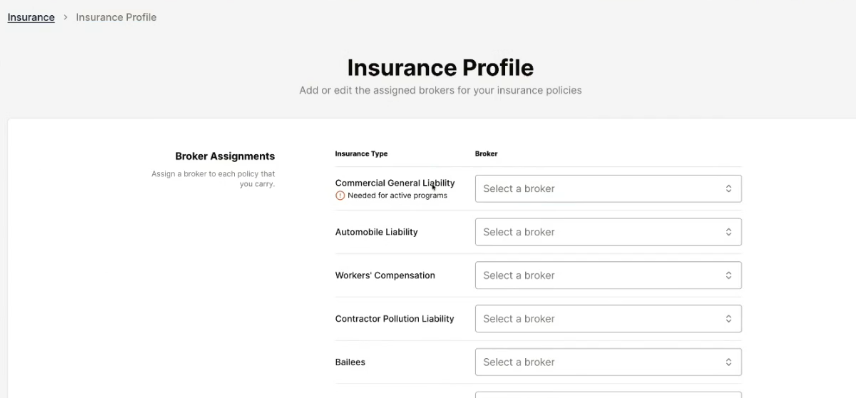
Click Select a broker.
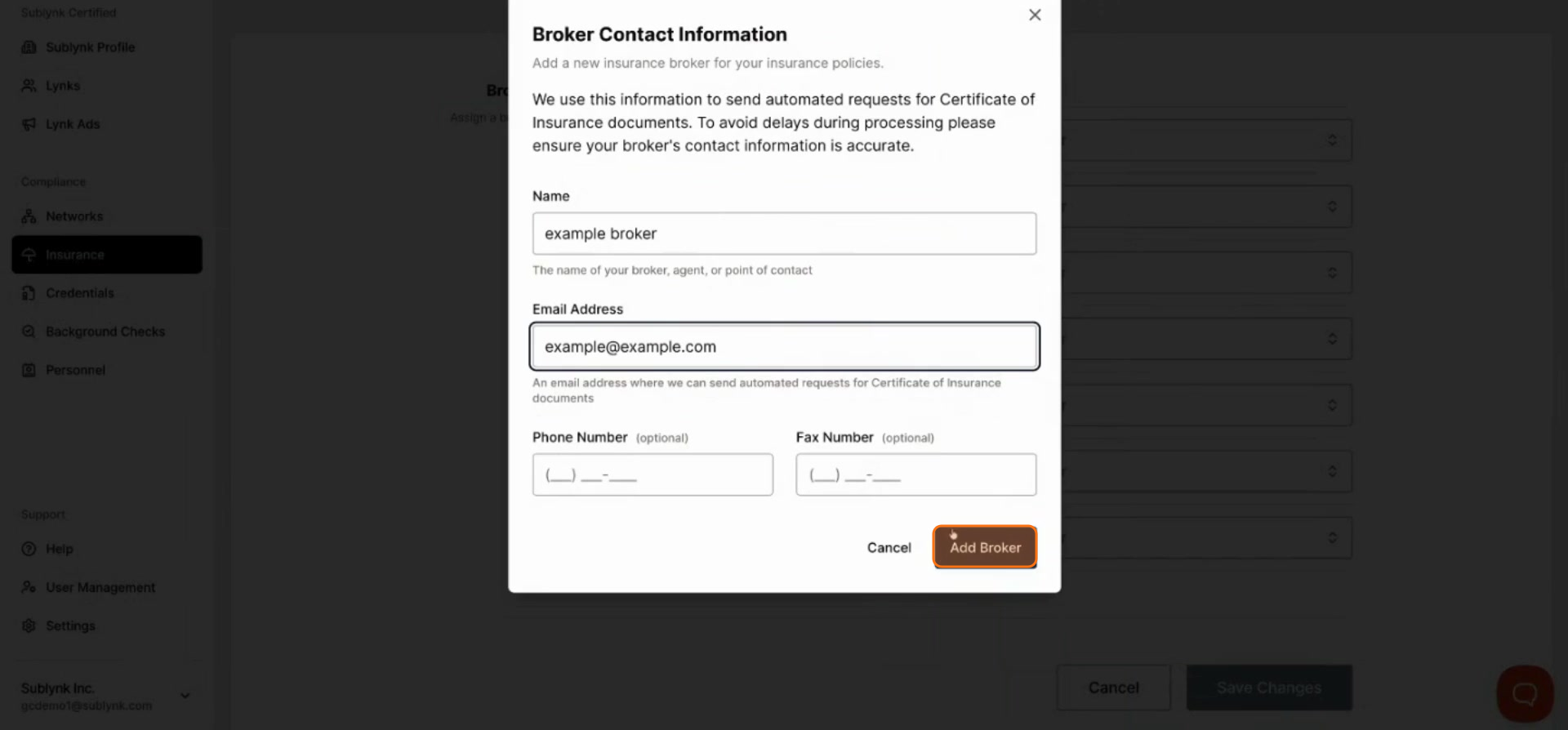
Enter Broker Name and Email
Enter your broker's name and email address. This allows Sublynk to contact them for every line of insurance you hold. If you have different brokers for different lines of insurance, you can add additional brokers or assign the same broker to multiple lines.
Save Your Changes
Click Save Changes to store the information you have entered.
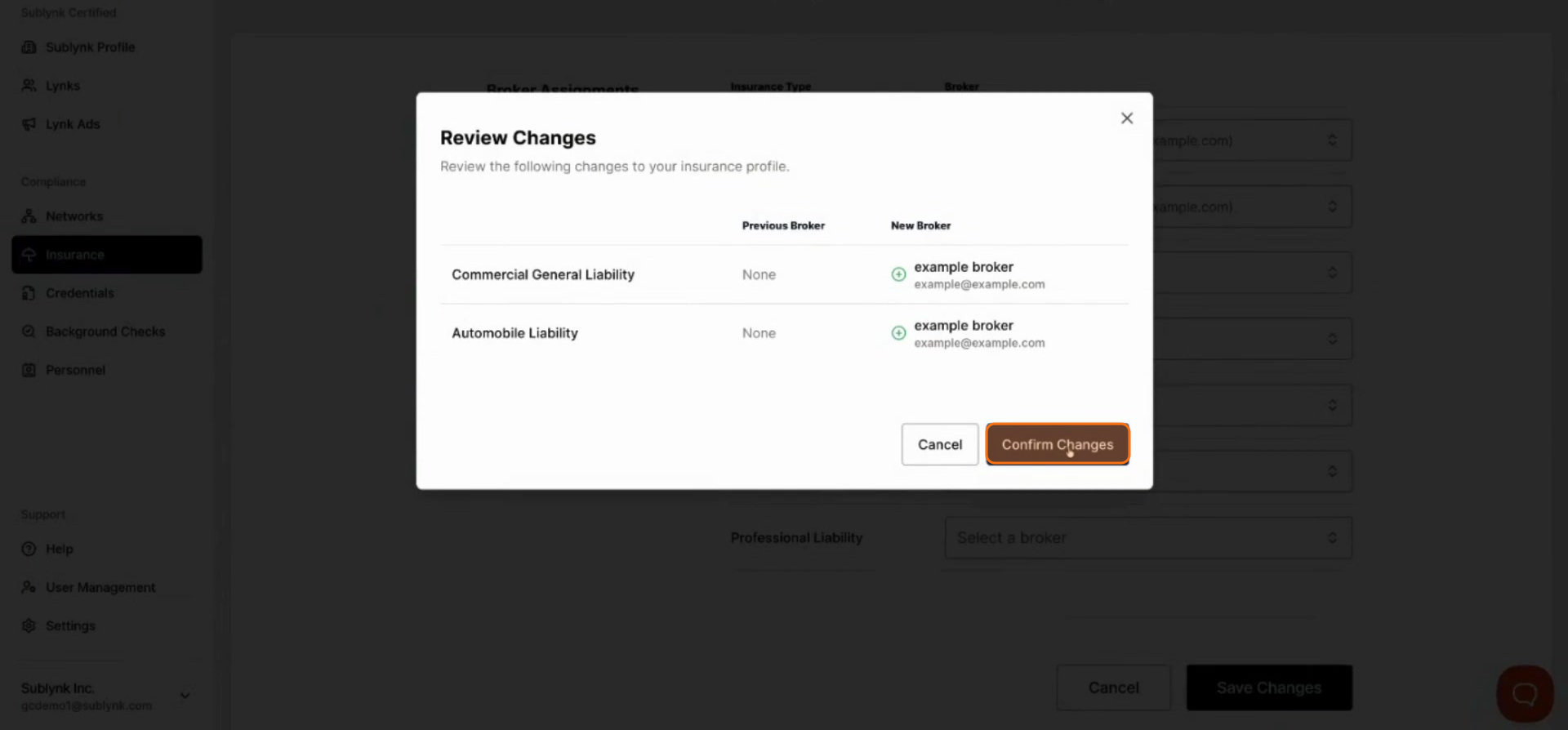
Confirm Broker Assignments
Review the list to confirm the correct broker is assigned to each line of insurance.
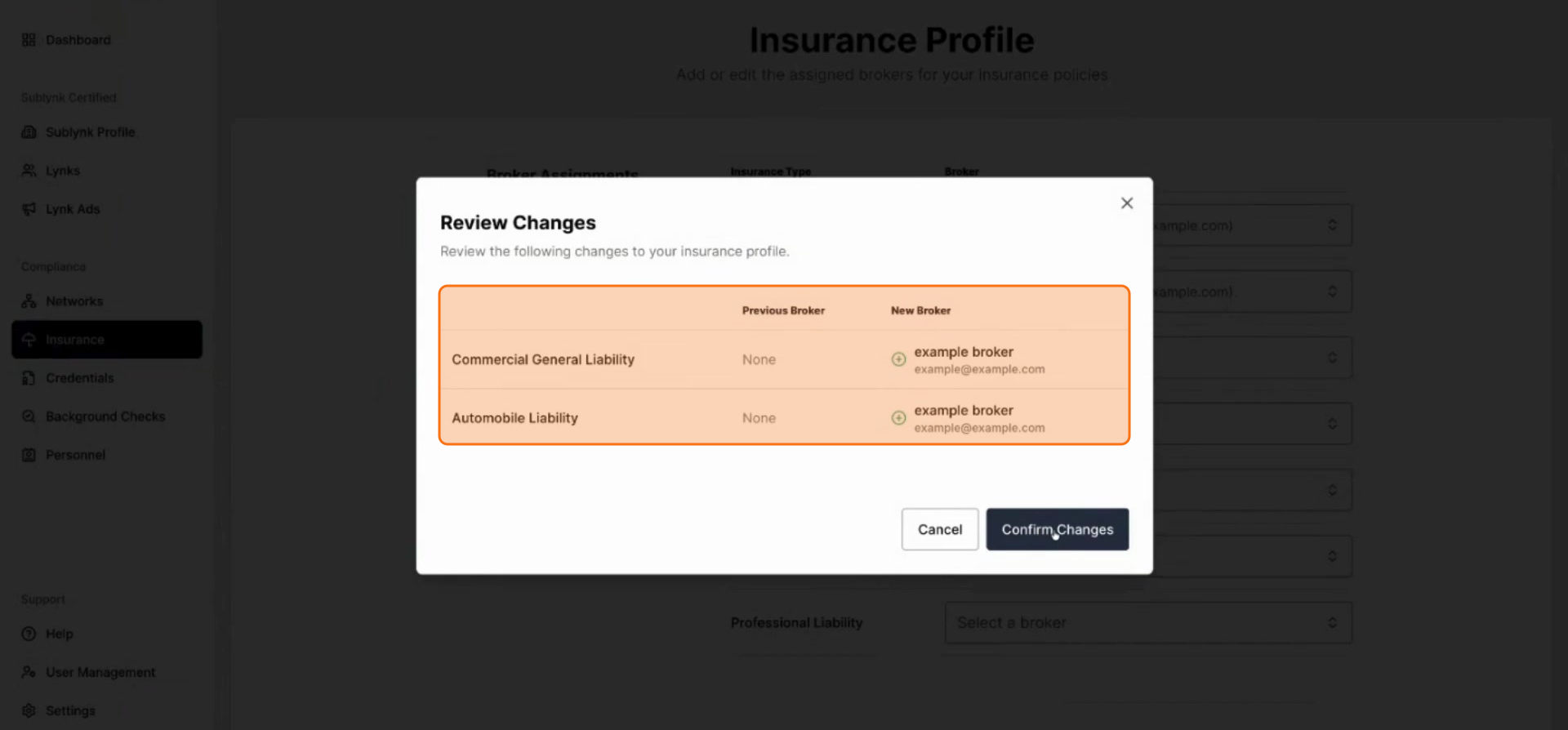
Confirm Changes
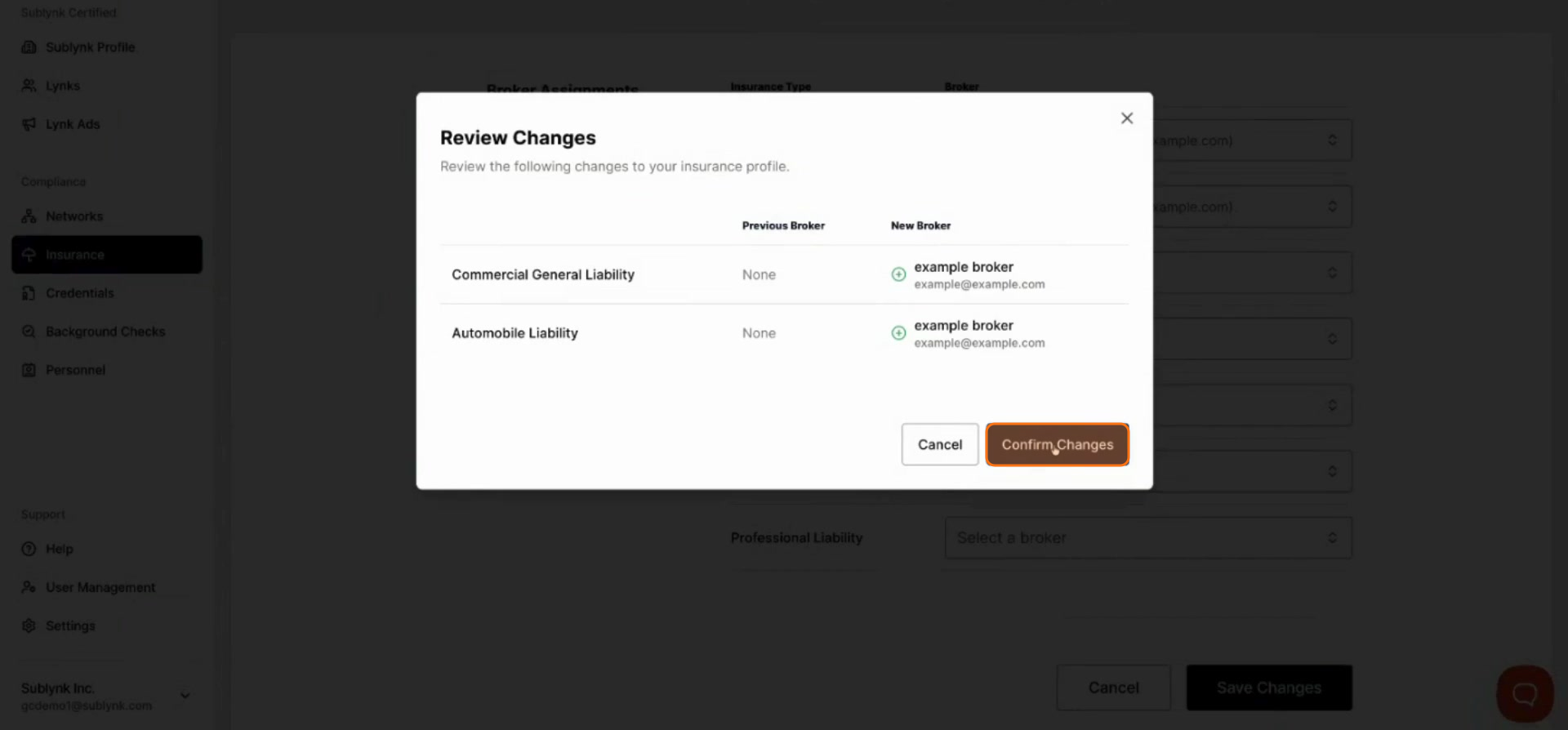
Once everything looks correct, click Confirm Changes to finalize your updates.
Next Steps
- How to Manage Your Credentials on Sublynk
Upload your trade licenses so Sublynk can validate them at the source licensing board.
Want to see the Sublynk Certified Network in action?
Book a Demo